

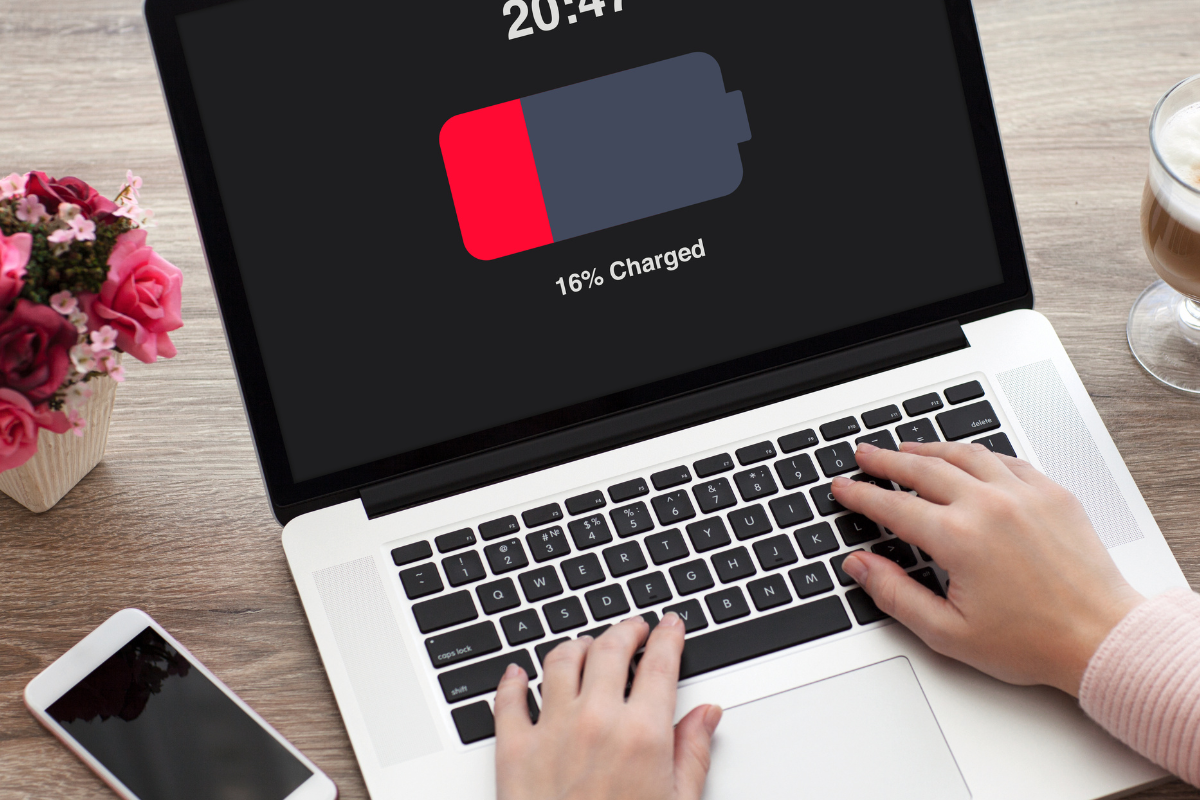
Welcome to our Tech Tip of the Month! Each month, we bring you a handy tech tip to boost your productivity and streamline your workflow.
Don’t Let Your Laptop Battery Drain Completely
Your laptop battery works hard every day—powering meetings, video calls, emails, and everything in between. But one small habit can dramatically shorten its lifespan: letting the battery drain to 0%.
Why You Should Avoid Fully Draining Your Battery
Modern laptops use lithium‑ion batteries, which last longest when kept between 20% and 80%. Allowing them to hit 0% regularly can cause:
- Faster battery wear
Deep discharges put stress on the cells, reducing overall capacity over time. - Shorter total lifespan
A battery that is often drained completely may need replacement far sooner. - Unexpected shutdowns
A full drain can occasionally corrupt files or interrupt system updates.
What You Should Do Instead
✔ Keep your charge between 20%–80%
This is the “sweet spot” for battery health. It prevents both deep discharge and excessive heat from 100% charging cycles.
✔ Enable Battery Health or Optimised Charging Features
Many laptops include built‑in tools to prevent overcharging:
- Windows 10/11: Battery Saver & Manufacturer Battery Health tools
- MacBooks: Optimised Battery Charging
- Dell/HP/Lenovo: BIOS or vendor apps like Dell Power Manager
These tools automatically slow charging or cap the charge level when needed.
✔ Use Sleep or Hibernate instead of letting it die
If you’re stepping away, close the lid or put your laptop to sleep.
If you won’t use it for a while, use Hibernate to preserve power with no risk of data loss.
✔ Avoid using your laptop until it shuts off
Even occasional full drains add up over time. Plug in when you get the low‑battery warning.
✔ Keep your laptop cool
Heat is the enemy of battery health. Avoid leaving laptops in cars, direct sunlight, or soft surfaces that block airflow.
Bonus Tips for Maximum Battery Life
- Dim your screen brightness
- Turn off Bluetooth/Wi‑Fi when not needed
- Close background apps that drain power
- Remove USB devices when not in use
- Update regularly—updates often include power optimisation improvements
The Bottom Line
Treat your laptop battery kindly, and it will last longer, perform better, and keep you productive throughout the day. A small habit—not letting it drain completely—goes a long way.
We hope you find this helpful! Stay tuned for more tech tips next month to keep your productivity soaring. Happy computing!